Guest Satisfaction Records Table
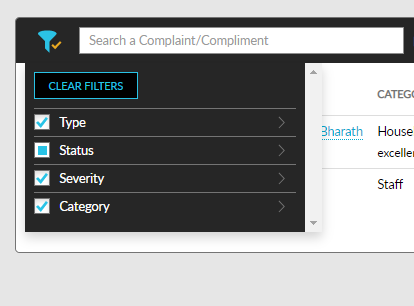
Use the filter option on the Guest Satisfaction screen to set the table appearance.
Search complaints and compliments by searching the category name in the search bar.
Select a date range or type the number of days and click Go to view the range's Guest Satisfaction record. The maximum number of days that can be selected in the date range or entered is 90 days.
Select Show Archived to display archived Guest Satisfaction records.
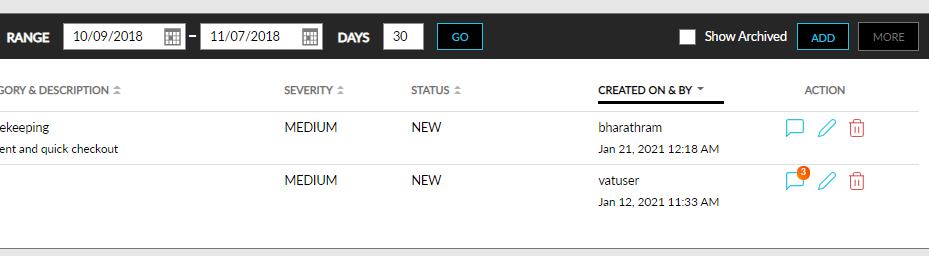
The Guest Satisfaction table lists the following:
-
Ref ID & Type – The auto-generated reference ID for the Guest Satisfaction record and the type of record, whether it is a complaint or compliment. Upon clicking the reference ID, the Guest Satisfaction pop-up screen with the record is displayed.
-
Profile – The guest profile name and their phone number. Clicking the profile name takes the user to the guest profile screen.
-
Category & Description – The category selected, for example, Housekeeping. And a description of the record if available.
-
Severity – The severity of the Guest Satisfaction record, either being medium or high.
-
Status – The status shows whether the record is new or completed.
-
Created On & By – It shows the user's name who created the record and the time and date when the record got created.
-
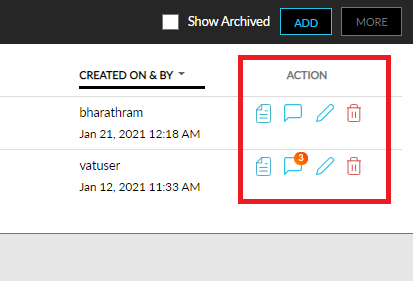
Action – Here, the user can upload documents, place comments, edit the record, or delete it.

Actions
Click the document icon to upload, download, or delete documents.
Perform the following functions in the Upload Document pop-up screen.
|
Field |
Description |
|---|---|
|
Attach File |
Choose files with a maximum size of 15 MB. Word, Excel, PPT, PDF, JPEG, GIF, and PNG are the file types that can be uploaded. |
|
Description |
Add a description for a maximum of 150 characters. |
|
Agree |
Select the checkbox to agree to the mentioned terms and conditions. |
Click the Upload button to complete the document upload.
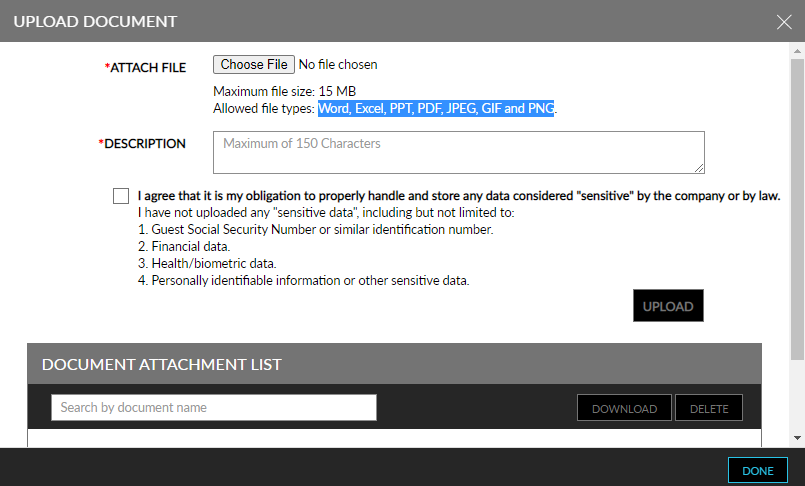
View the uploaded documents under the Document Attachment List.
Search by document name using the search bar.
Select a document and download the same using the Download button.
Select a document and delete the same using the Delete button.
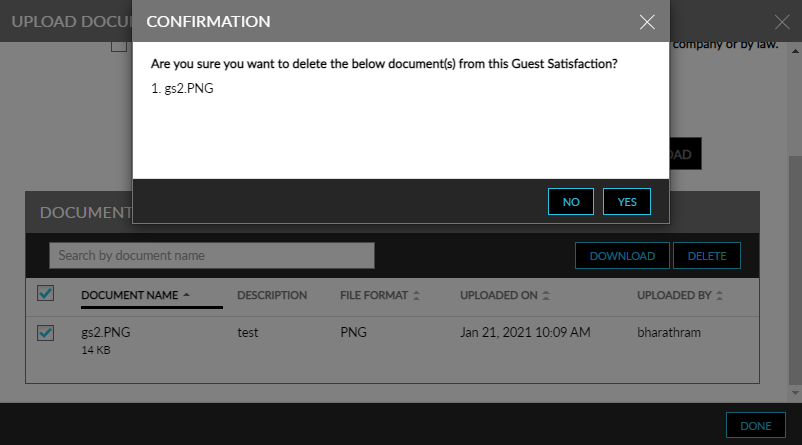
Click Yes in the confirmation pop-up to proceed with deleting the document.
Click the comment icon under Action to place comments on the record. Users can place multiple comments for a Guest Satisfaction record.
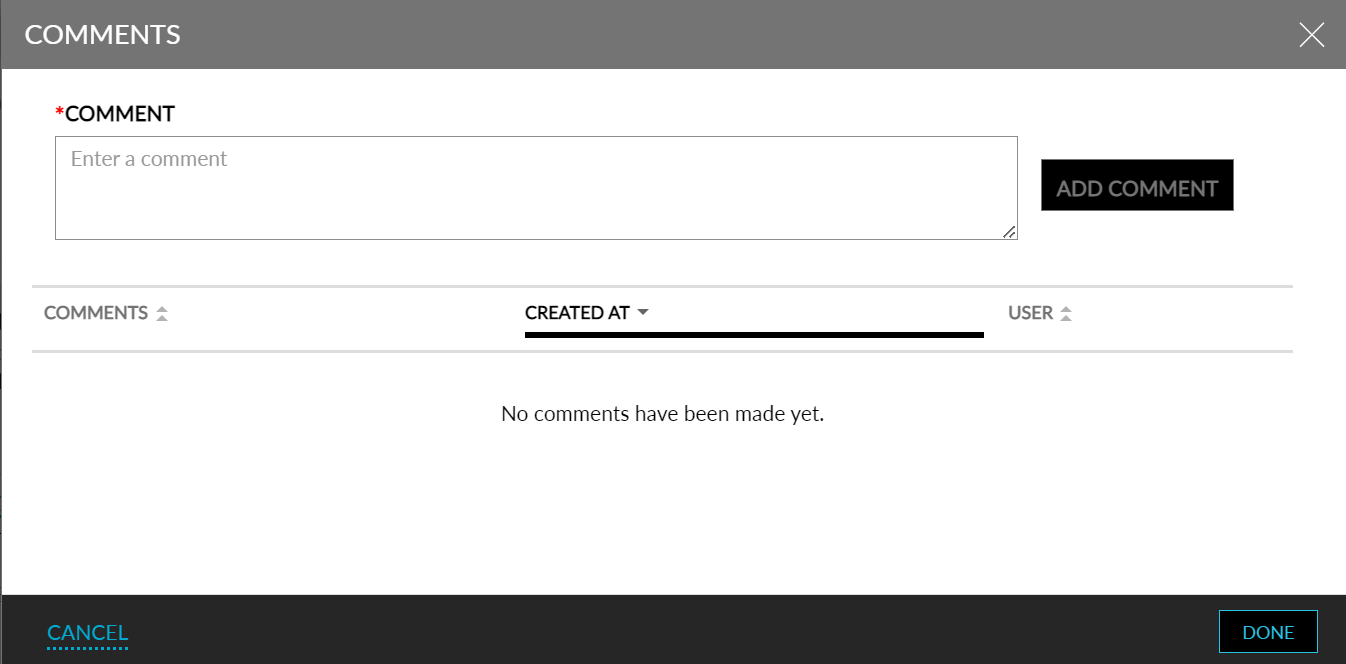
Enter the comment in the Comment text box of the Comments pop-up screen.
Click the Add Comment button to save the comment.
View the added comments in the Comments pop-up screen.
Edit the guest satisfaction record by clicking the pencil icon under Action. It opens the Guest Satisfaction pop-up screen to edit and save the record.
Archive a Guest Satisfaction record by clicking the bin icon under Action.
Click Yes in the confirmation pop-up to delete the record.
Bulk Edit and Archive
Select multiple records and click More on the right top corner to edit or archive the chosen records, that is, to perform a bulk action.

Click Edit from the More drop-down list to open the Bulk Edit pop-up screen.
Enter the following information to proceed with the bulk edit.
|
Field |
Description |
|---|---|
|
Select Status |
Choose between new and completed using the radio buttons. |
|
Resolution Comments |
Enter relevant comments in the textbox. |
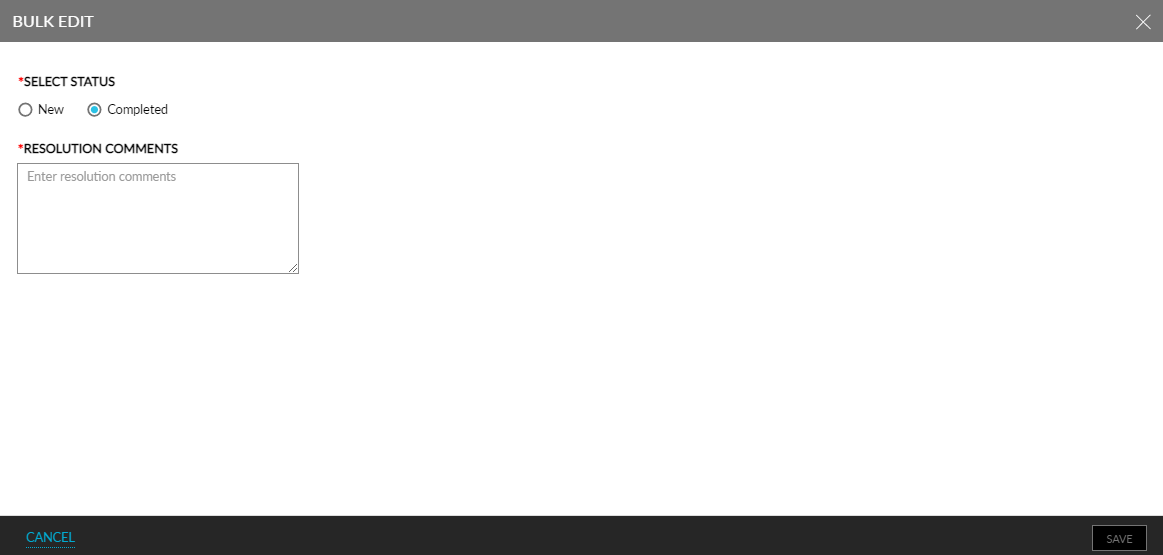
Click the Cancel button or the cancel icon on the top right corner to close the pop-up screen.
Click the Save button to save the bulk edit.
Click Archive from the More drop-down list to archive multiple Guest Satisfaction records.
Click Yes in the confirmation pop-up to archive the records. Alternatively, click No or use the close icon to close the confirmation pop-up and not proceed with archiving.
Guest Satisfaction records show up in the Preferences & History section of the guest’s profile and the reservation.